Flying Roadster AI guide
How to Make a Flying Car AI Video With Your Own Car Photo
You do not need to sit in your car for the source photo. Our Flying Roadster example starts with an indoor selfie and a separate car image, then generates the driver, traffic jam, LAUNCH button, flight and landing. Here is how to choose the two references and the format for your own version.
By VidMello · · 6 min read
1. Start with a portrait, not a driving performance
Look at the actual indoor selfie below. It supplies the person’s face and appearance, not the driving pose, cabin or location. The paired red sports-car preset supplies a separate vehicle reference. Watch the complete result to see how the model places the person into the car and moves between interior and exterior views.
For your input, keep the full face sharp, with visible eyes and even lighting. A selfie or head-and-shoulders portrait of one adult is enough. A photograph through a reflective windshield is harder to read than an ordinary portrait. Do not add a second face or ask one image to define both the driver and the vehicle.
Actual input → Complete generated video
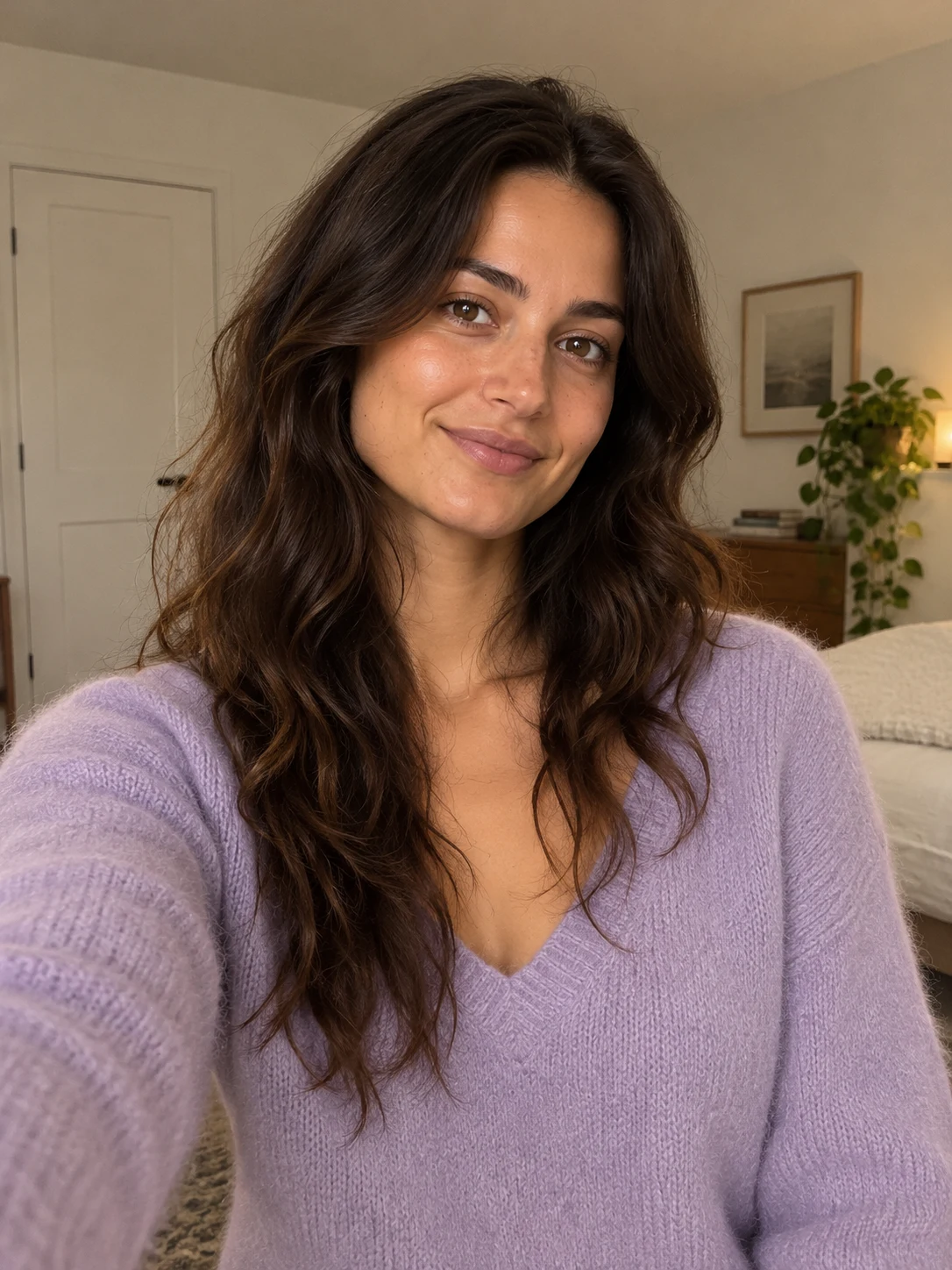
Portrait input · Indoor selfie
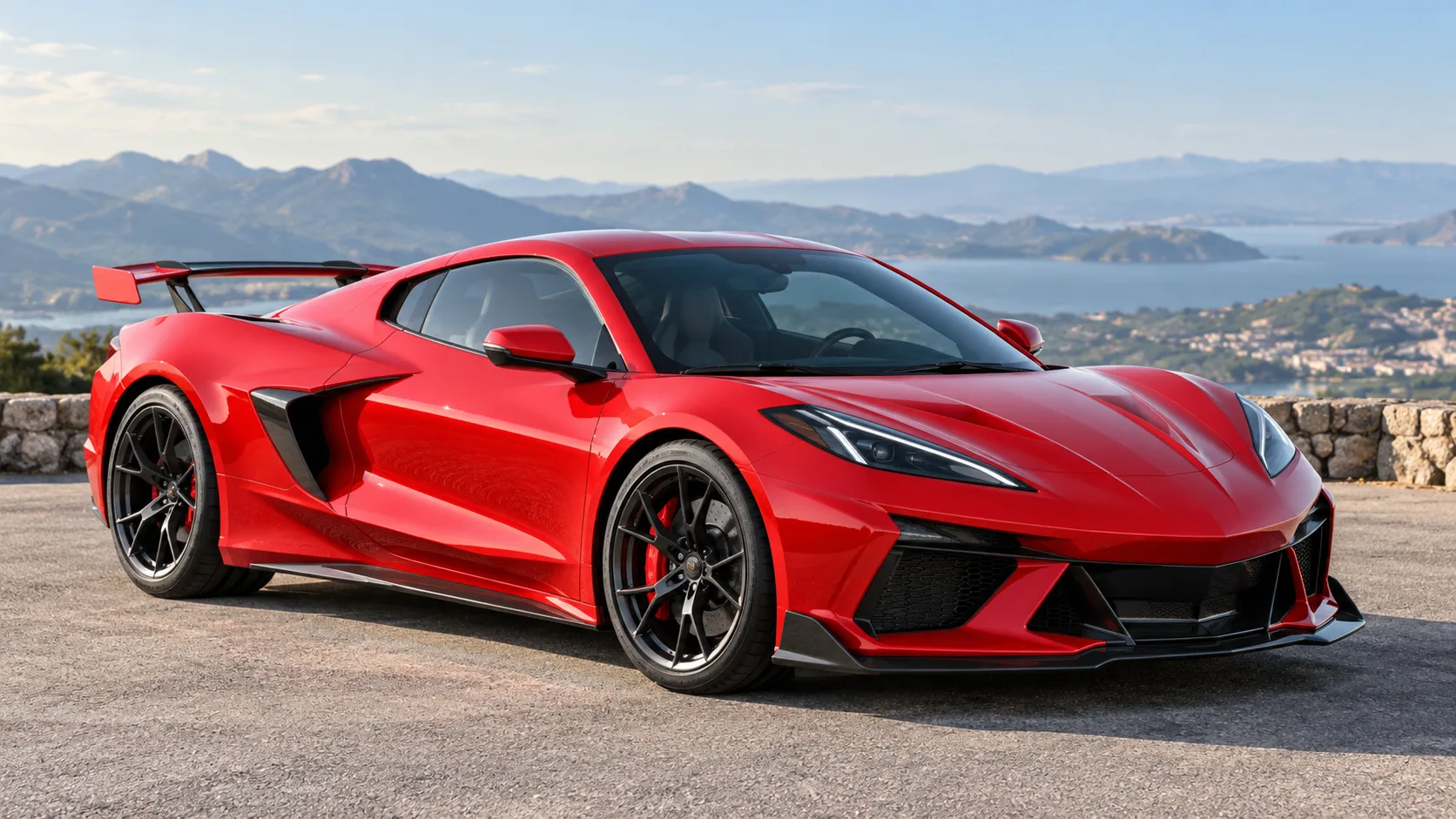
Car input · Red sports coupe
12 seconds · 16:9
The actual standalone selfie and red sports-coupe preset, followed by their complete landscape generation. No in-car pose was needed in the portrait.
People in these examples are AI-created adult characters, not customer uploads. Your result can vary.
2. Show the whole car, or choose a preset
For your own vehicle, use a single exterior image with the whole car visible. A front three-quarter or side view gives the model the body shape, paint color and wheels in one reference. Avoid a collage, a close-up of a badge or several cars parked together. You can cover a license plate before uploading if you prefer.
The workbench also offers four original, unbranded references: Red sports coupe, Blue grand tourer, Green classic roadster and Ivory classic coupe. Choosing one fills the car input; it does not add a third required upload. You can replace a preset with your own car photo, or replace that photo with a preset.
The green-car example below uses the alternate driver portrait and classic-roadster reference. Compare the reference’s overall appearance with the shots in flight. It illustrates a different vehicle choice, while also giving you a reason to inspect roof, wheel and body details rather than assume they stay exact.
Actual input → Complete generated video
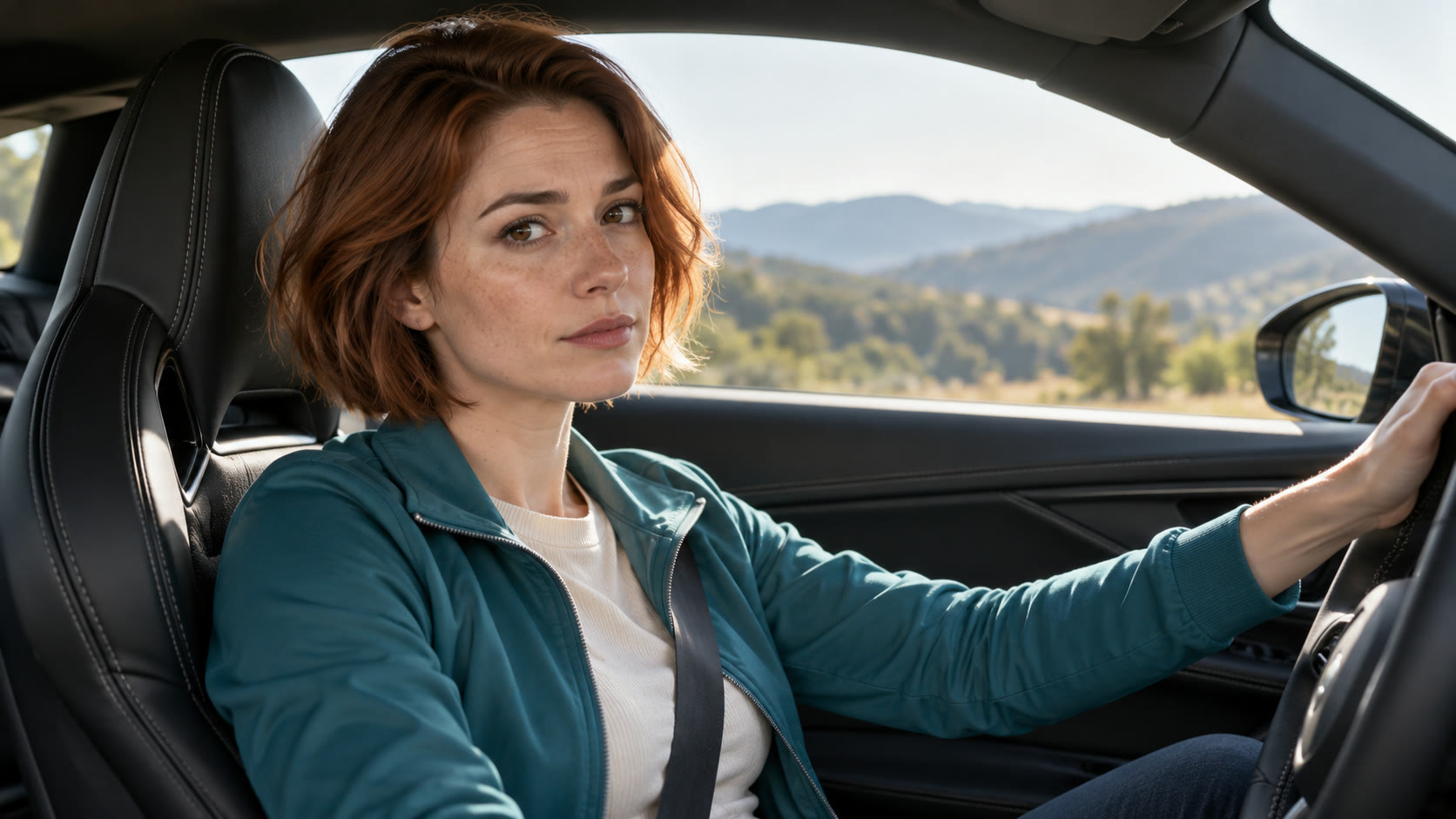
Driver input · AI-generated
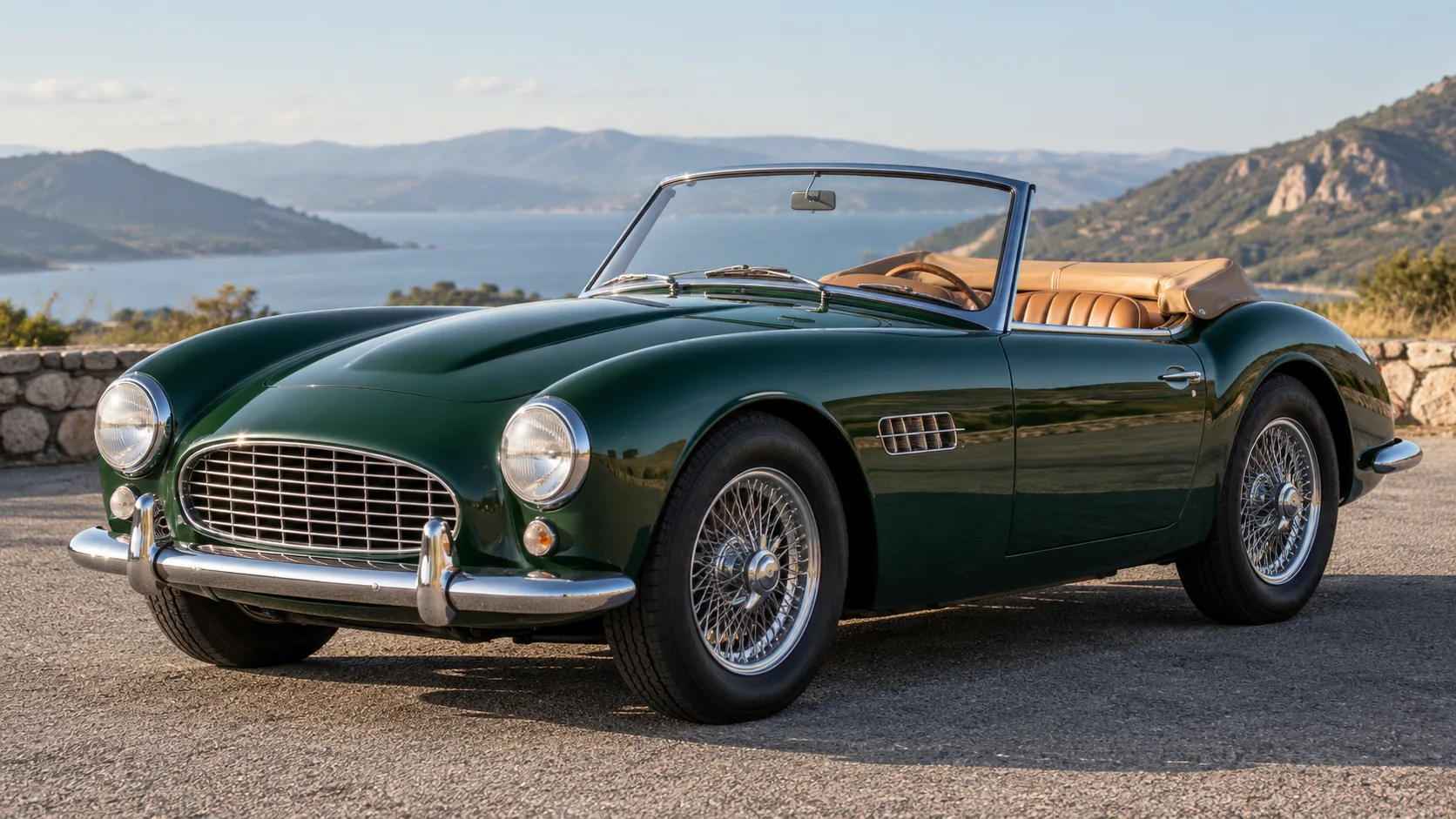
Car input · Green classic roadster
12 seconds · 16:9
A separate driver-and-car pair produces a green classic-car flight. The input references guide appearance; the freeway and flying sequence come from the template.
People in these examples are AI-created adult characters, not customer uploads. Your result can vary.
3. Choose vertical before generating if that is where you will post
Landscape 16:9 gives the car and surrounding traffic a wide frame. Native portrait 9:16 produces a separate vertical generation; it is not a crop of a finished landscape result. Both options use 10 Credits. Make the choice before submitting, since downloading a wide result does not create its vertical counterpart.
The vertical example uses the same indoor selfie and red-car reference as the first landscape example. Watch the camera sequence: the person appears at the start, then the clip follows the car through flight and landing. Matching inputs do not guarantee matching shot order, framing or the same number of driver close-ups.
Actual input → Complete generated video
Portrait input · Indoor selfie
Car input · Red sports coupe
12 seconds · Native 9:16
Native 9:16, generated separately from the same two inputs. It follows the vehicle through the vertical frame rather than cropping the landscape sample.
People in these examples are AI-created adult characters, not customer uploads. Your result can vary.
4. Check both inputs and start the video yourself
Your portrait goes first; the vehicle image or preset goes second. Review both previews and confirm permission before continuing. The Starter pack costs $9.90 once for 10 Credits, enough for one video at the current 10-Credit cost. There is no subscription or automatic renewal. If your balance already covers the 10-Credit submission, another pack is unnecessary.
Payment confirmation returns you to the workbench; it does not start the video automatically. Check the selected format and explicitly submit once. There is no prompt, reference-video upload or custom audio control to fill out in this template. The scene already includes the traffic, button, takeoff and landing.
Once accepted, the job continues on the server if you close the page. Return to private History and refresh to check its status. The twelve-second specification describes the finished clip, not the wait. There is no fixed processing-time promise.
5. Review the car across cuts, then save the MP4
Check the face in the interior views, the hand and LAUNCH button, the vehicle’s color and silhouette in flight, and the landing on four wheels. A convincing first frame does not guarantee consistent wheels, clothing or facial features later. Our samples are selected outputs, not an exact-match promise for every car and portrait.
Sound is generated for each video: traffic, button, engine and flight effects can differ from the examples. This is different from adding a fixed song after the visuals. There is no separate music choice or custom audio upload for Flying Roadster.
Preview and download the completed MP4 from History while it is available, up to 30 days. VidMello adds no watermark and charges no extra Credits for the download. A technical failure before delivery returns reserved Credits; another attempt after a delivered creative result is another 10-Credit submission. Share it as fictional AI video, not a demonstration of a real flying-car feature.
Frequently asked questions
Do I need a Tesla or an in-car portrait?
No. Use one clear adult selfie or portrait and a separate full-car exterior photo. An unbranded car preset can replace the exterior photo.
Can I get landscape and vertical from one generation?
One submission creates the format selected beforehand. Landscape 16:9 and native portrait 9:16 are separate generation choices at the same 10-Credit cost, not two exports included in one submission.
Will the car keep its exact make, wheels and roof?
The vehicle image guides the result, but exact preservation across every shot is not guaranteed. Compare the paint, silhouette, roof and wheels through takeoff and landing.
Is the sound the same as the sample?
No. The model generates sound for your video. The sample’s sound is not copied onto every result, and there is no separate music selector or custom audio upload.